INTER TENNIS Record from app
November 15, 2024
ALLLatestTutorial

Tutorial: Live Recording from the app
Prepare Your Smartphone
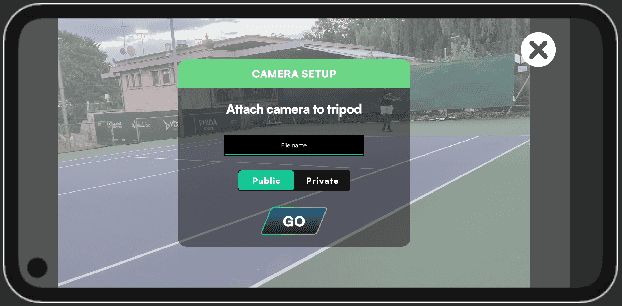
Tap on the "+" button in the app, then Record. You will see the following starting dialog box overlay on top of live feed from your smartphone camera.
You can give it a filename (optional) and select whether you want to keep the video Public or Private.
Fix your camera on a tripod BEFORE tapping on GO button. Make sure you are connected to the internet before going ahead.
Court Detection
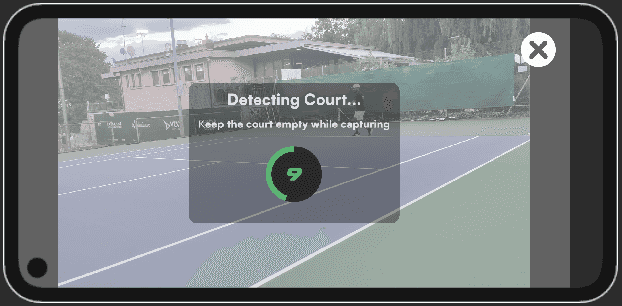
The app will start detecting court in the background on clicking GO. In this step, it is crucial that the smartphone is firmly attached to a tripod or other fixture. If the camera moves, the court detection might fail. The process takes around 20-30 seconds.
What if court detection fails?
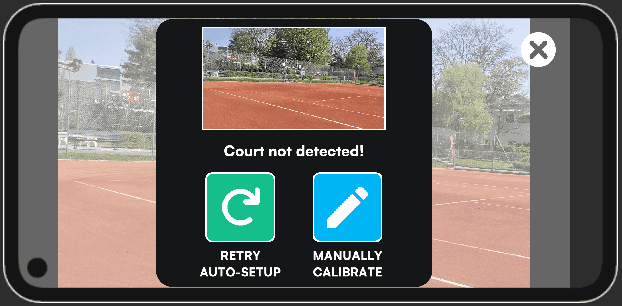
There can be different reasons if the court detection fails. If it fails despite clear and visible court lines, it might be due to perturbation in camera fixture during detection process. You can retry the detection in this case after ensuring the stability of your smartphone on tripod.
Calibrate Court if needed
Sometimes, however court detection would not work at all if the court lines are not visible. This is especially often the case with clay courts. In this case, you will need to manually calibrate the court. Tap the pencil button to do this.
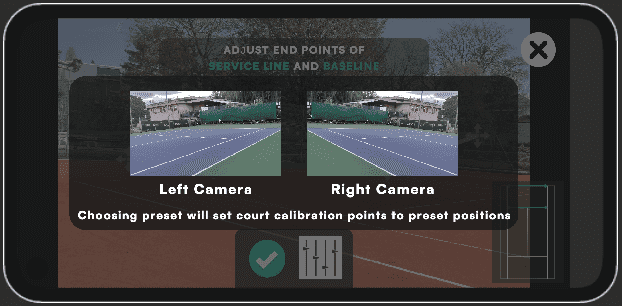
You will be shown two preset court point positions (for left and right camera). Select the correct preset based on the position of your tripod on the court.
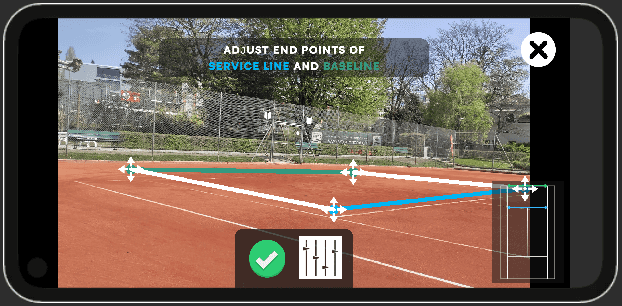
Then, further adjust the four points so that the baseline (green line) and service line (blue line) are aligned with the actual lines of the court. Ensure that the two white lines align with the inner alley lines of the court.
Set timer to stop recording
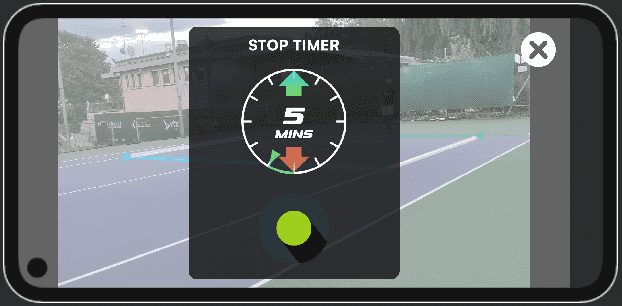
Once you are done with the court detection/calibrate, you are at the last step to start recording your video. You need to select a stop timer, when the recording will automatically stop. This can be between 5 to 55 minutes with 5 minutes increment. Slide up or down on the timer icon to adjust the time.
Progress bars during recording
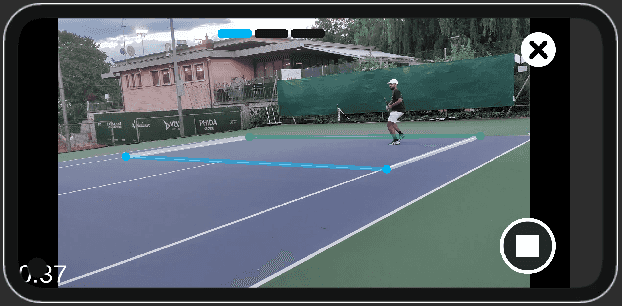
When the recording starts, you will see bars on the top showing the progress of your video transmission to the server. The blue bar color indicates the part of video that has been transmitted. The blue bar then gets filled in green color indicating processing of the video by the server.
Stop recording
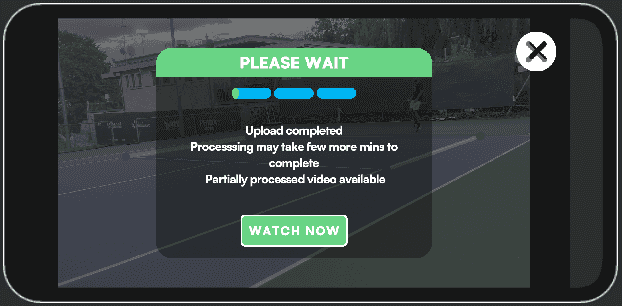
The recording of your video will terminate at the end of the stop timer. But, it can also be manually terminated using the close(X) or stop buttons. At the end of the recording, your video will need a few more seconds to finish transmitting to the server. Please do not close the app until uploading completes. When, the video has been fully transmitted, you will see the following dialog with a button to open the video. It may take 5-10 mins more to complete the processing of your video. But, you can still watch the analytics generated on the processed part of the video so far.